
Late payments don’t just annoy freelancers, they mess with cash flow, taxes/VAT planning, and your ability to say “yes” to the next project. This listicle compares 5 options in the “ai invoice and payment reminder tool for freelancers” category, focusing on how reminders actually behave (cadence, tone, escalation), how clients pay (payment links, credit card/bank transfer), and how cleanly everything hands off to bookkeeping.
The goal isn’t to crown one winner; it’s to help match the right workflow to your client base whether you invoice net-7 for retainers, net-30 for bigger clients, or deal with “always 10 days late” payers who need a firm-but-professional dunning sequence.
TL;DR (Quick take):
- If you want built-in AI help drafting invoices/reminders: QuickBooks (Intuit Assist).
- If you want a free invoicing core with automated reminders: Zoho Invoice.
- If you live on mobile and want lightweight invoicing + overdue reminders: Bookipi.
- If you want an “AI-first” invoicing app concept (incl. reminders): Invoicer.ai.
- If you want an AI AR assistant focused on follow-ups (more “collections” style): Mesha.
Table of contents
- What it is
- How it works
- Benefits
- Key features checklist
- How to choose
- Common mistakes
- FAQ
- Conclusion + soft CTA
What it is
An AI invoice + payment reminder tool combines invoicing (quotes/estimates, invoices, recurring invoices) with automated follow-ups (pre-due, due-date, overdue) and online payment options (payment links, cards, bank transfer). The “AI” part usually means help drafting messages, personalizing tone, or optimizing follow-up sequencing based on client behavior though some tools still do “basic schedule automation” rather than true prediction.
How it works
- Create an estimate/quote
- Convert to invoice
- Set payment terms (net-7/net-15/net-30), deposits, partial payments
- Send with a payment link
- Reminders run on a cadence
- Escalate tone if overdue
- Client pays
- Receipt is sent
- Bookkeeping sync/export updates accounts receivable and cash flow
Benefits
- Less late-payment stress: fewer awkward follow-ups and more consistent dunning cadence.
- More predictable cash flow: overdue invoices are tracked like real accounts receivable.
- Cleaner ops: receipts + exports make taxes/VAT/GST season less painful.
Key features checklist
- Invoicing basics: templates, due dates, payment terms, recurring invoices, estimates/quotes.
- Payments: payment links, credit card, bank transfer options, receipts, partial payments/deposits (if you need them).
- Reminders (dunning): pre-due + overdue schedule, escalation steps, client segmentation.
- Personalization: editable templates, language/tone controls.
- Handoff: bookkeeping sync/export + integrations (Stripe/PayPal/Wise; QuickBooks/Xero/FreshBooks; Zapier/Make).
How to choose
Use your reminders like a system, not a one-off email.
Short checklist
- Pick your default payment terms (net-7/net-15/net-30) and required deposit policy.
- Decide your follow-up cadence (example: 3 days before due, due date, 3/7/14 days overdue).
- Ensure payment links are easy for the client (cards + bank transfer if possible).
- Confirm whether you need partial payments, recurring invoices, or client portals.
- Verify pricing/trial on the vendor site before committing (especially if adding users).
Mini decision guide
- If you invoice internationally, prioritize flexible payment methods and clear receipts for bookkeeping/taxes.
- If you work with enterprises, prioritize tone control + longer cadence and clean history.
- If you invoice small clients who forget, prioritize one-click payment links and pre-due reminders.
- If you have repeat late payers, look for segmentation/personalization so escalation stays professional.
1. QuickBooks Online
Best for:
- Best for solo freelancers and small teams who want invoicing and payment reminders built into full accounting.
- Pricing: Starts at $35/month (30-Day Free Trial available).
- Typical user: solo freelancer or small service business using QuickBooks Online.
- Pricing model: subscription accounting plans.
- Payment methods + integrations: supports online payments and connects with other QuickBooks features; specific gateways not confirmed here.
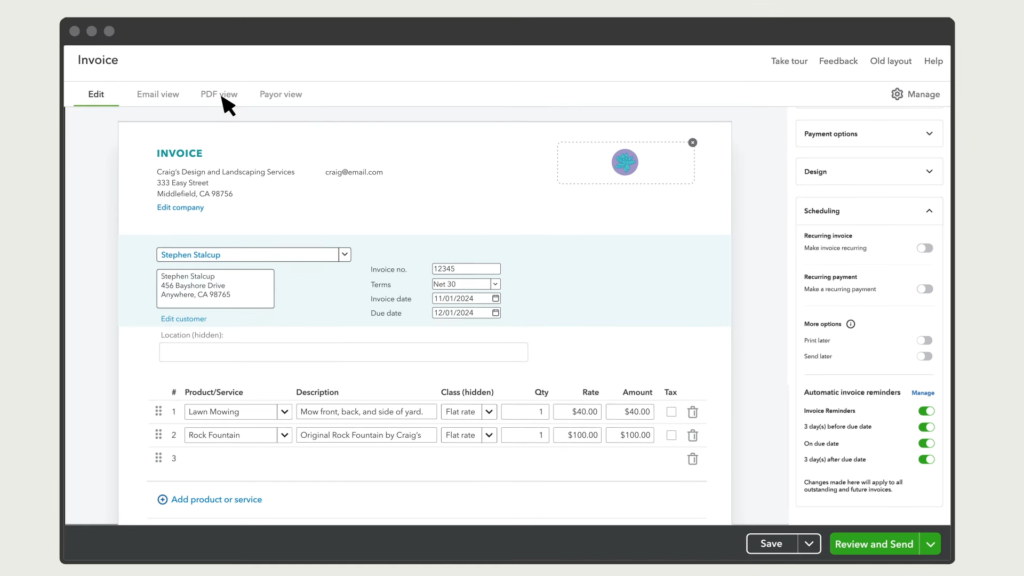
- Reminder automation level: can send automated invoice reminders or let you send reminders manually.
- Tone & personalization controls: you can customize invoice and reminder emails to match your tone, but detailed AI tone controls aren’t fully documented.
- Security & compliance notes: QuickBooks is marketed as a secure accounting platform, but encryption and compliance details should be checked on Intuit’s official documentation.
Bottom line (1 minute): Best-fit for freelancers who want an all-in-one accounting system where AI helps create invoices and overdue reminders. Worst-fit if you only want a lightweight invoicing app. Differentiator: Intuit Assist acts like a GenAI helper for invoices and reminders.
AI reminder automation (sequencing, scheduling, segmentation)
- QuickBooks lets you turn on automatic invoice reminders or send them manually when needed.
- Intuit Assist helps draft reminder emails so you’re not writing from scratch each time.
Invoice + payment flow (links, methods, partial payments, deposits)
- You create invoices inside QuickBooks and can add payment terms like net‑7, net‑15, or net‑30.
- Clients can pay online depending on your payment setup; exact gateways and partial/deposit options depend on plan/region and are not fully confirmed.
Personalization & tone controls (friendly→firm, templates, language)
- You can customize invoice and reminder email text to feel friendly or more formal.
- Fine‑grained AI tone controls (like “make this firmer”) are not clearly documented, so treat them as not confirmed.
Integrations & bookkeeping handoff (Stripe/PayPal/Wise; QuickBooks/Xero/FreshBooks; Gmail/Outlook; Zapier/Make)
- Because invoicing lives inside QuickBooks, paid invoices flow straight into your accounting and reports.
- External payment and app integrations exist, but specific providers and automation setups should be checked in QuickBooks’ integration docs for your region.
2. Zoho Invoice
Best for:
- Pricing: Free forever $0/mo (includes invoicing, expense tracking, and client portal).
- Typical user: solo freelancer or small service business.
- Pricing model: free.
- Payment methods + integrations: supports accepting online payments, but gateways vary by region.
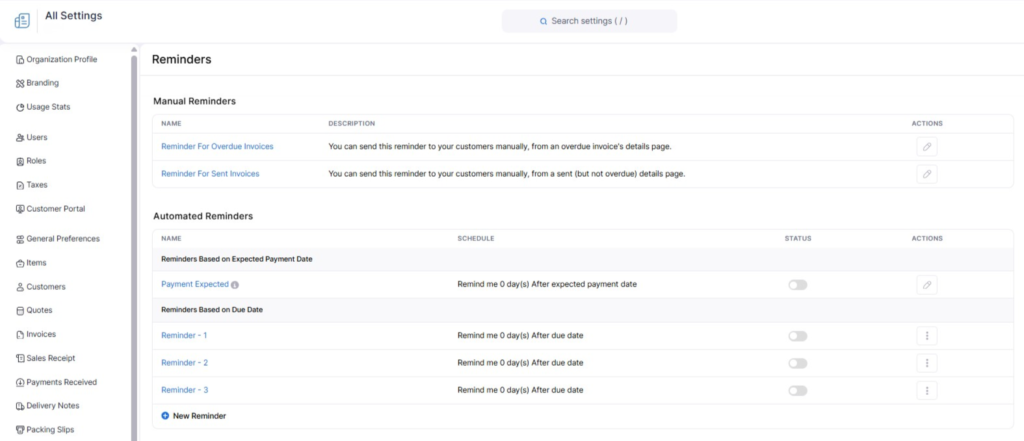
- Reminder automation level: automated reminders based on schedules (you can also send reminders manually).
- Tone & personalization controls: invoice templates are customizable; reminder tone escalation controls not confirmed.
Bottom line (1 minute): Best-fit for freelancers who want a zero-cost way to send invoices and automatically chase late payments with a consistent follow-up cadence. Worst-fit if you need advanced AI-based segmentation or late-pay prediction (not confirmed for Zoho Invoice). Differentiator: automated reminders without paying a monthly subscription.
AI reminder automation (sequencing, scheduling, segmentation)
- Intuit Assist is described as a GenAI tool that helps automate tasks and includes “invoice overdue reminders.”
- It supports creating automated invoice reminders or sending reminders manually when you want to.
AI reminder automation (sequencing, scheduling, segmentation)
- Zoho Invoice supports both automatic and manual payment reminders.
- Automatic reminders can be configured in Settings → Reminders, and Zoho notes you can enable up to 30 automatic reminders.
Invoice + payment flow (links, methods, partial payments, deposits)
- Zoho Invoice supports accepting payments online by integrating payment gateways (setup is under Integrations → Online Payments).
- Zoho’s “Accept online payments” page lists supported gateways including Stripe, PayPal, Razorpay, 2Checkout, Square, Authorize.net, and more.
Personalization & tone controls (friendly→firm, templates, language)
- Zoho Invoice allows configuring reminder templates (since reminders must be enabled and configured before use).
- You can send manual reminders for “overdue” and “sent” invoices once manual reminders are configured.
3. Bookipi Invoice
Best for:
- Pricing: Starts at $9.99/month (free trial available).
- Mobile-first invoicing with overdue reminders
- Freelancers and small businesses that want fast invoicing plus automated overdue reminders.
- Typical user: Solo service providers sending invoices and following up on late payments without manual chasing.
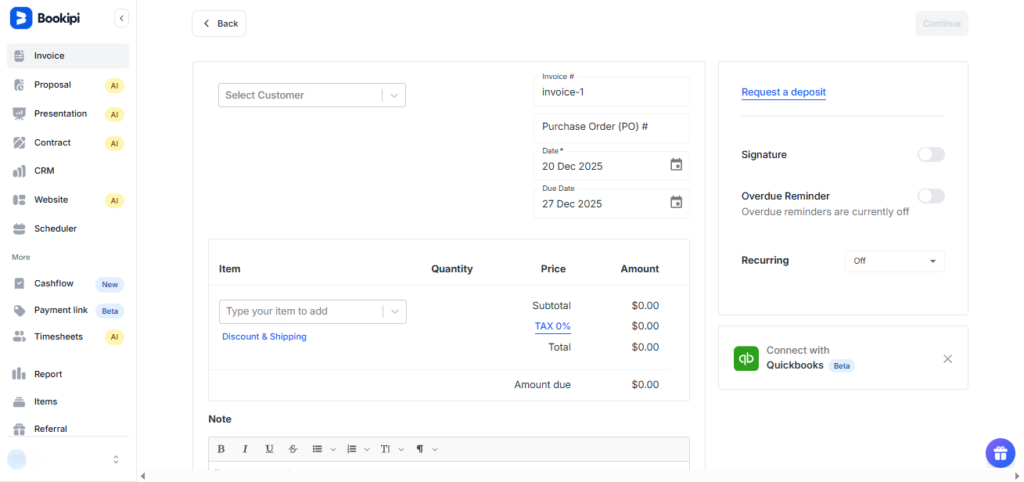
- Reminder automation level: You can enable overdue reminders and choose when they send (e.g., on due date, after 3 days, after 7 days).
- Where to set reminders: Turn on reminders per invoice while creating it, or enable them from Settings so they apply automatically to new invoices.
- Deposits: Bookipi supports requesting a deposit on an invoice and editing deposit requests (amount/percentage/due date) if the deposit hasn’t been paid yet.
- Recurring: The invoice editor includes a “Recurring” option (useful for ongoing clients).
Bottom line (1 minute): Best-fit for freelancers who send invoices from a phone and want the system to automatically nudge clients on (or after) the due date. Worst-fit for freelancers needing advanced AR analytics or “collections-style” escalation logic. Differentiator: Bookipi explicitly positions itself as “AI-powered” business management tools, while still keeping reminder setup simple.
AI reminder automation (sequencing, scheduling, segmentation)
- Bookipi supports automating invoice due/overdue reminders with selectable timing options (e.g., on due date, after 3 days, after 7 days).
- AI-driven segmentation or risk scoring: Not confirmed
AI reminder automation (sequencing, scheduling, segmentation)
- Invoicing flow is supported
- payment-link behavior and deposit/partial payment controls is supported
4. Invoicer.ai
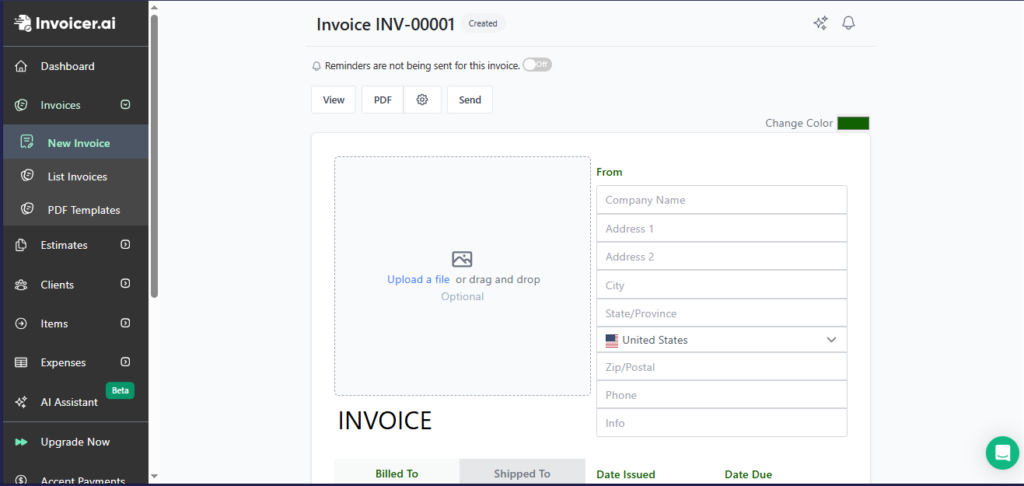
Best for :
- Freelancers/small businesses that want invoicing plus automatic late payment reminders.
- Pricing: Starts at $10/month (14-day free trial available).
- Reminders: Late payment reminders are included as a feature on paid plans.
- Payments: Supports accepting payments, with a Stripe integration for card/mobile wallet payments.
- Automation/AI: Includes an AI invoice generator and an AI assistant (token limits vary by plan).
- Usage limits: Basic plan shows “Send 50 documents a day” and includes 1 user (higher plans include more users).
Bottom line (1 minute): Invoicer.ai is a strong pick if the main goal is to send professional invoices, accept payment, and automatically chase overdue invoices with late payment reminders. It’s also a good fit if you want built-in AI helpers (AI invoice generator + AI assistant) without moving to a full accounting suite.
AI reminder automation (sequencing, scheduling, segmentation)
- Invoicer.ai supports automatic late payment reminders that can be sent on a schedule.
- Late payment reminders are listed as an included feature across paid plans on the pricing page.
Invoice + payment flow (links, methods, partial payments, deposits)
- Invoicer.ai supports “Accept payments” as a core feature.
- Invoicer.ai offers a Stripe integration to accept card and mobile wallet payments, and the Stripe page mentions availability in 135+ countries.
Personalization & tone controls (friendly→firm, templates, language)
- Invoicer.ai offers a “Payment Reminder Generator” that generates reminder emails at different escalation levels (from friendly reminders to final notices).
- If your article needs “tone escalation,” it’s safest to reference this generator (since it explicitly states escalation levels).
5. FreshBooks
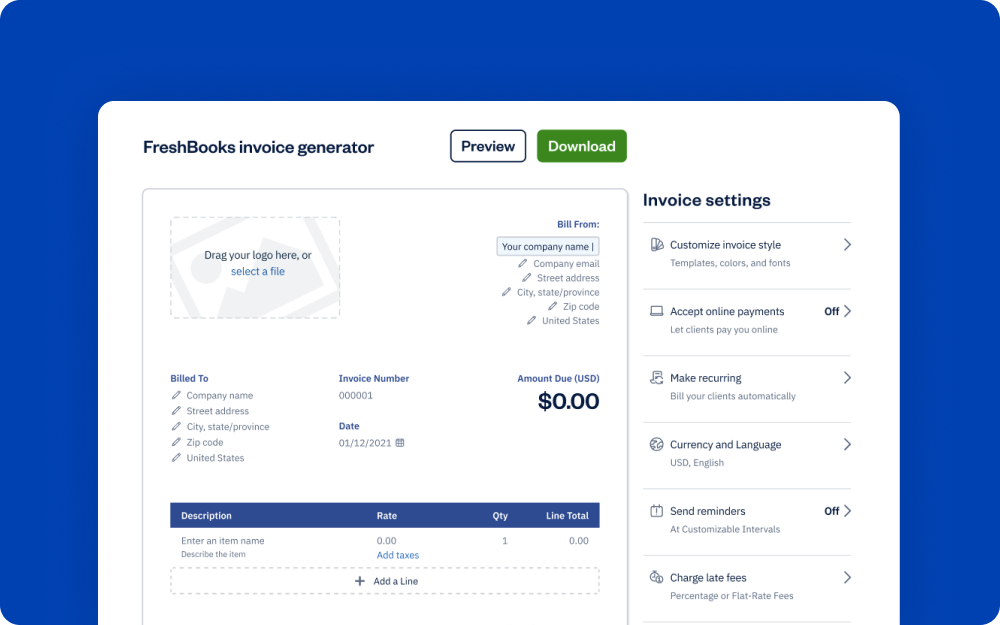
Best for :
- Freelancers/small businesses that want professional invoicing plus automatic reminders to reduce late payments.
- Pricing: Starts at $19/month (free trial available).
- Reminder automation: FreshBooks supports automatic payment reminders (and you can customize them).
- Late fees: FreshBooks also supports late fees alongside payment reminders.
- Reminder structure: You can set up to three payment reminders per client.
- Use case: Helpful if you want reminders to go out automatically instead of manually chasing invoices
Bottom line (1 minute): FreshBooks is a strong pick when you want a clean invoicing experience and you don’t want to manually follow up on overdue payments, because it supports automatic, customizable payment reminders (plus optional late fees)
AI reminder automation (sequencing, scheduling, segmentation)
- FreshBooks supports automatic payment reminders and lets you customize the reminders it sends.
- FreshBooks allows up to three reminders per client, which is enough for a simple “friendly → firm → final” sequence.
Invoice + payment flow (links, methods, partial payments, deposits)
- FreshBooks positions itself as invoicing + accounting software designed to help you “get paid faster,” including online payments and reminders as part of its billing flow.
- If your article needs exact payment methods (cards/ACH/etc.), those should be taken from FreshBooks’ online payments settings docs (not pulled here), so don’t list specific rails yet.
Personalization & tone controls (friendly→firm, templates, language)
- FreshBooks describes payment reminders as “automatic” and “customizable,” which supports writing about adjusting wording/tone to match your brand voice.
- FreshBooks’ support documentation also frames reminders as something you can configure per client (up to three), which naturally supports different tones across reminders.
Final Thoughts
If cash flow is the #1 problem, the best “invoice reminder” tool is the one that matches your workflow, not the one with the most features. QuickBooks Online is the safest all‑in‑one pick when you want invoicing + accounting in one place, while Zoho Invoice is the strongest $0 option that still gives you both manual and automated reminders (including due-date and expected-payment-date logic). Bookipi is great when you want simple overdue reminders with quick preset timing (due date / +3 / +7) and minimal setup, while Invoicer.ai fits teams that want a lightweight invoicing system with reminders and Stripe payments baked in. For a more premium “client-friendly” invoicing experience, FreshBooks stands out because it supports automatic, customizable reminders (up to three per client) and late fees, ideal when you want the software to do the chasing while you stay focused on billable work.
FAQ
Q: How many reminders should freelancers send before escalating?
A: A simple 3-touch sequence is usually enough: one reminder around the due date, a second a few days later, and a final notice if it stays unpaid. FreshBooks supports up to three reminder emails per client
Q: Can I automate reminders without paying for invoicing software?
A: Yes. Zoho Invoice supports automated reminders, and it also supports manual reminders.
Q: What’s the fastest setup if I just want overdue reminders?
A: Bookipi lets you turn on overdue reminders and choose preset timing options like “on due date,” “after 3 days,” and “after 7 days.”
Q: Do these tools also let clients pay online from the invoice?
A: Many do. Invoicer.ai supports collecting payments via Stripe and markets Stripe as an integration.
Q: What’s the #1 thing that makes reminders actually work?
A: Consistency. Set a schedule and let automation run every time so follow-ups do not depend on memory.